Quick-Start Guide
Match Caddie, screen by screen
Quick Start Guide — a quick tour of scoring, matches, and stats
1 · Opens when you first launch the app
Getting Started
Your first launch — sign in, then finish setting up
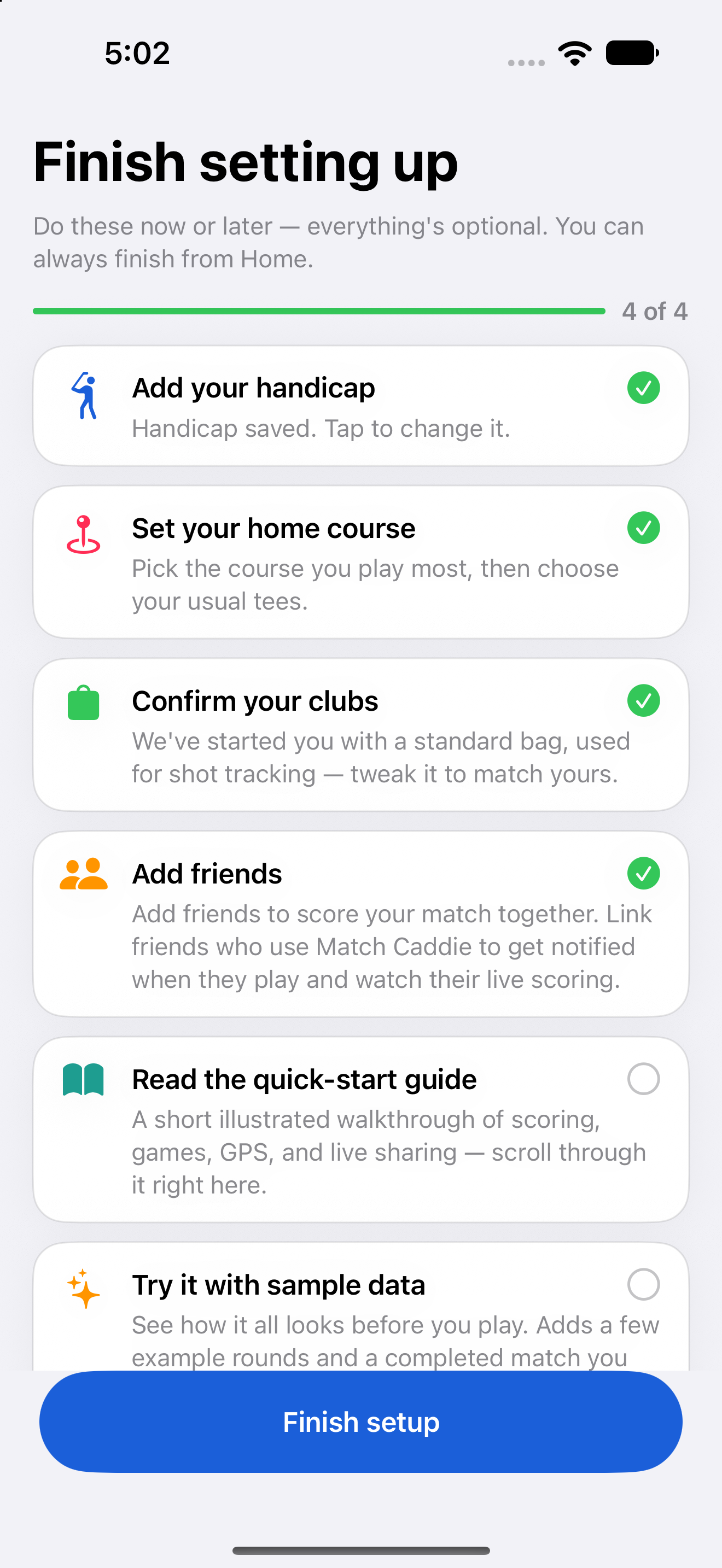
Finish setting up
Sign in with Apple — one tap, no password. Then a short checklist: your Handicap Index®, home course and tees, your clubs, and friends. Everything is optional, and you can finish it later from Home.
Try it with sample data
Want to see it before you play? Sample data adds a few example rounds and a finished match so every screen has something in it. Remove it any time from your Me page.
2 · Opens when you launch the app
Home
Your Home screen — see friends’ live rounds, your stats, and start playing
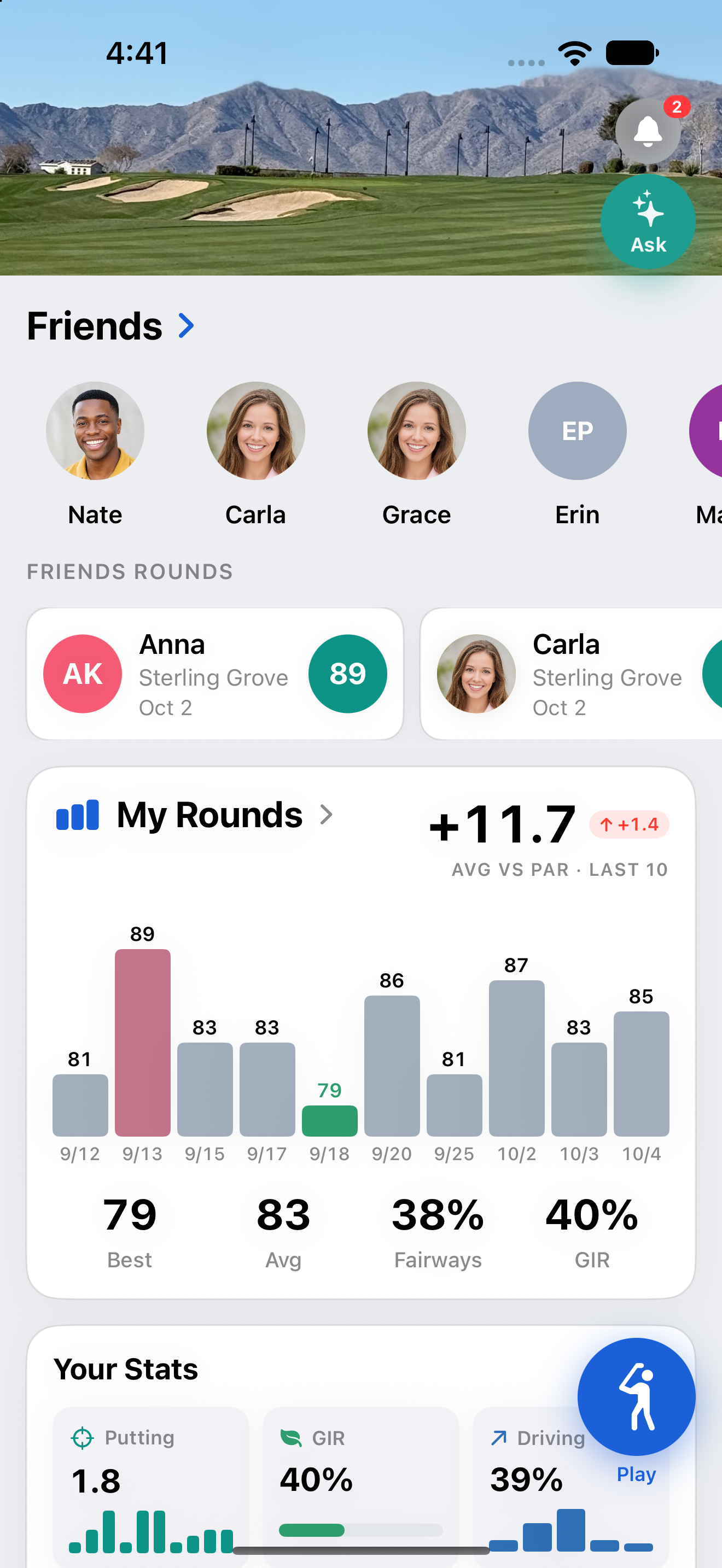
Make it yours
Put your own photo on this banner — a favorite course or your foursome. Set it from your Me page, under “Home Hero Image → Choose Photo.”
Notifications
Friend requests, match invites, and live round alerts show up here.
Ask your data
Ask questions about your golf in plain English — “How many penalties do I average per round?” or “How many times have I birdied hole 1 at Sterling Grove?” — and get an answer from your own rounds. Drag the button anywhere on the screen.
All friends
Manage everyone here — link or unlink buddies and add new ones. Linked friends share live rounds and stats; unlinked ones are just names on your scorecards.
Friends — and who's live
Linked friends show here. A friend on the course gets a red ring. Two taps: tap the red LIVE badge to open their live scorecard and follow along hole-by-hole; tap the photo to open their details.
Friends' rounds
See what your buddies just shot. Tap their score to open the scorecard for that round. Tap anywhere else to open their detail card.
My rounds
Your scoring trend at a glance — recent scores, average vs. par, best score. Tap to dig into full round history.
Start playing
Tap the blue button to start a round or a match. This is the one button that begins everything.
3 · Home → scroll down
Home — Stats & Shortcuts
Home screen, continued — your stats and shortcuts
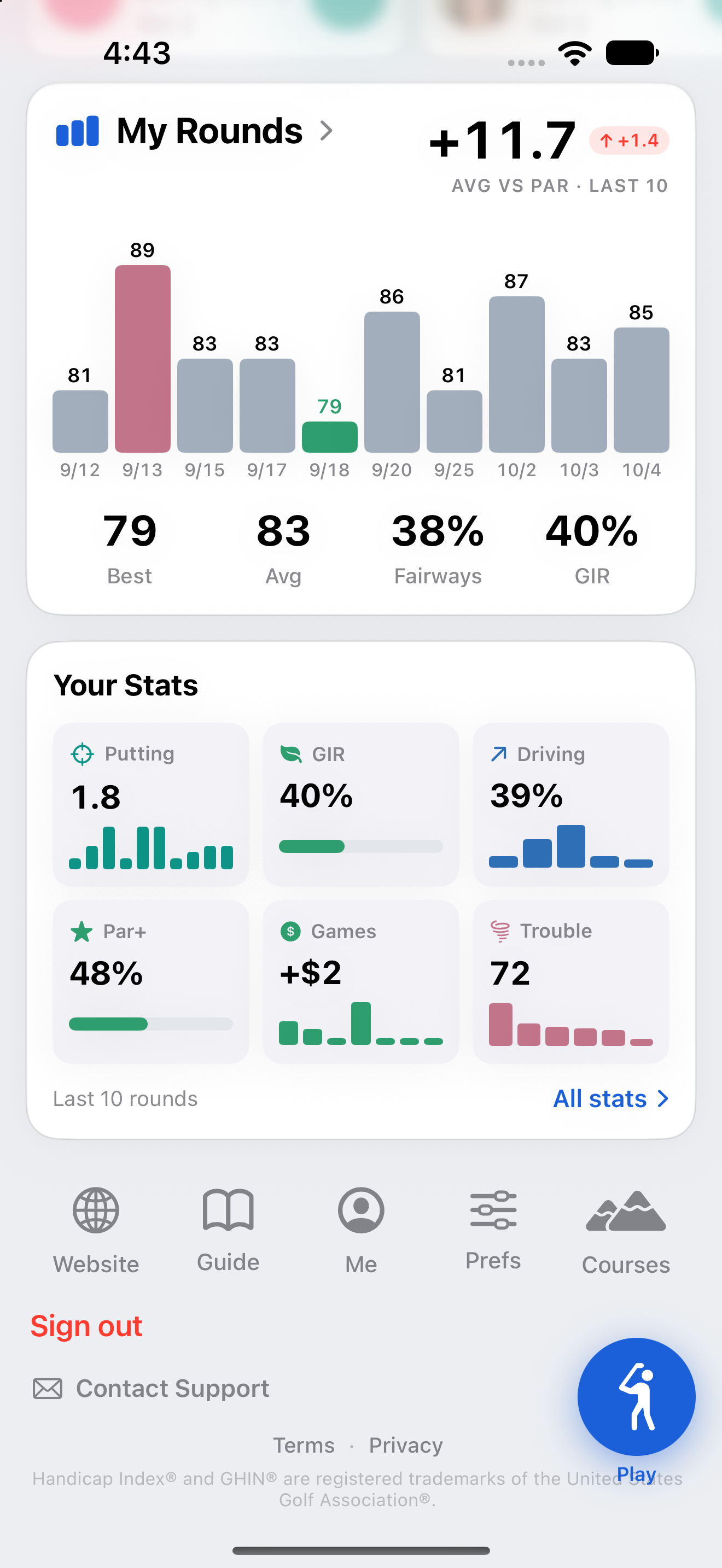
Your stats
A snapshot of your game — putting, GIR, driving, par-breakers, games, and trouble holes. Many interactive graphs and filters.
Me
Your profile — set your photo, home course, default tees, Handicap Index®, and clubs here.
Quick links
Jump to the website, this guide, your Preferences, and your Courses. Sign out and Contact Support live here too.
4 · Home → My Rounds
Previous Rounds
Previous Rounds — your scoring history
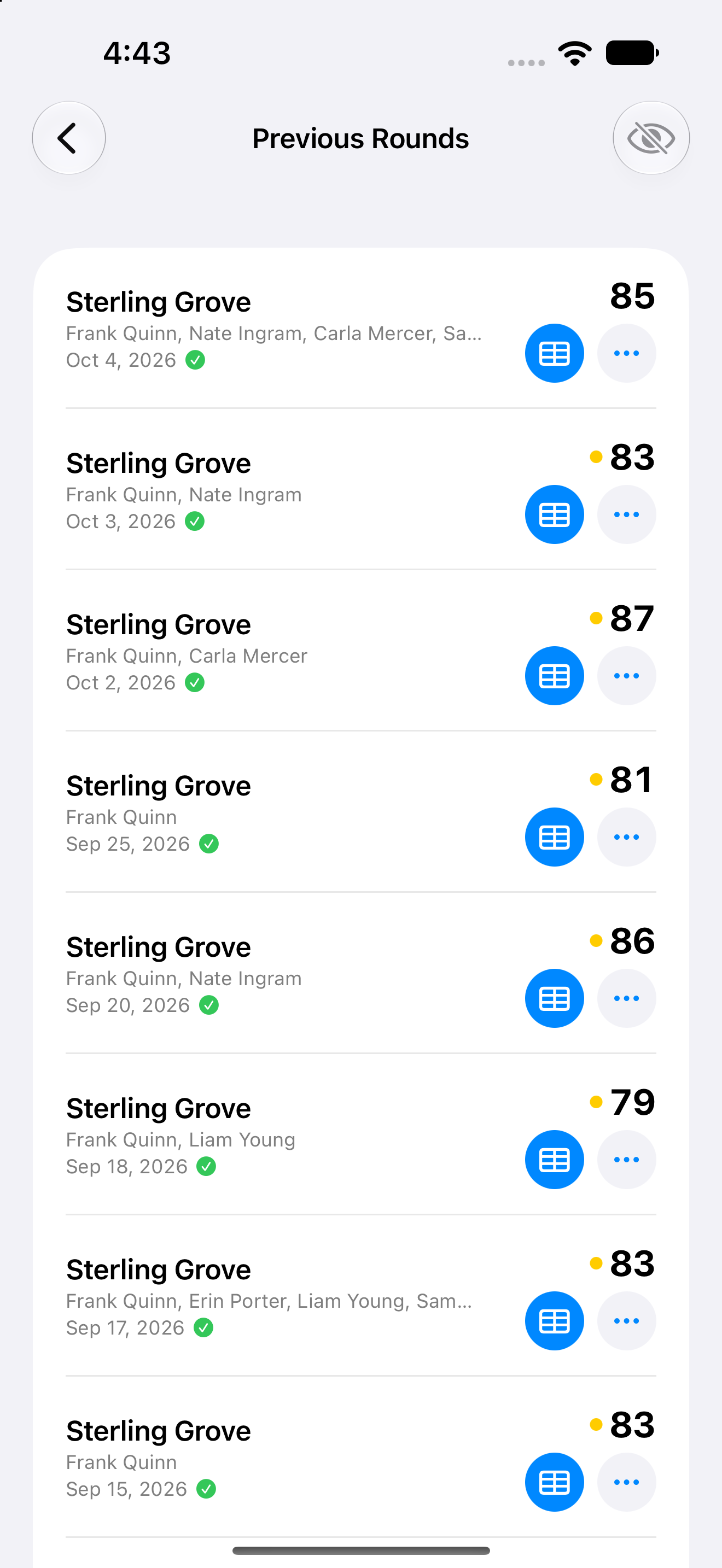
Show Deleted
Shows rounds you have deleted. Deleted rounds aren’t gone — restore them from here.
Your past rounds
Every round you’ve played, newest first.
Course, players, date
Where you played, who with, and when.
Final score
Total strokes for the round.
More options
Edit the score, edit the round's shots, or delete the round.
Open the scorecard
Tap to view the full scorecard for that round.
Synced
The green check means the round is saved to the cloud.
5 · Home → All friends
Friends
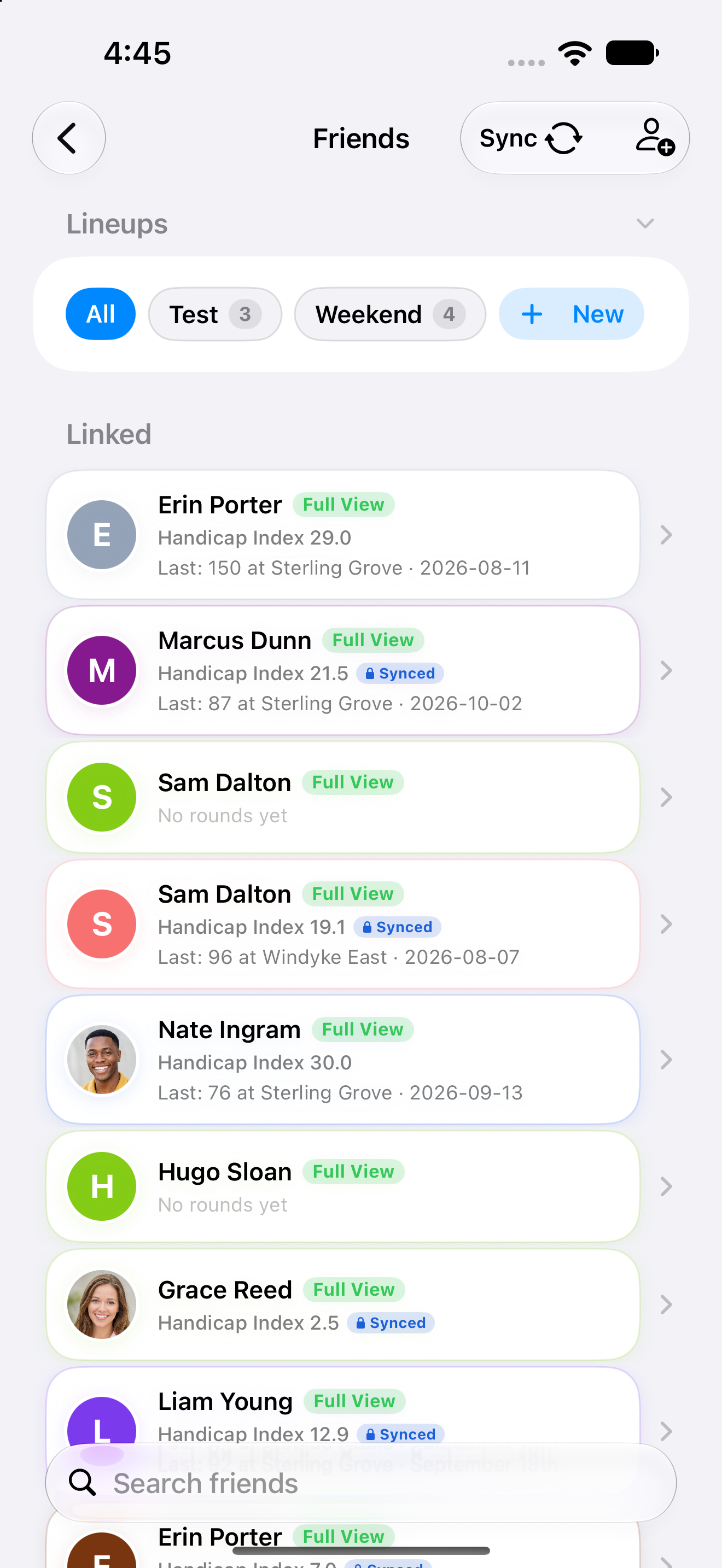
Your friends — linked, unlinked, and lineups
Add
Add a friend — search for someone who uses the app, or add a name for a guest.
Handicap Index® sync
Refresh friends' Handicap Index values by hand. You rarely need to — it happens automatically when you start a match.
Lineups
Save your go-to groups — a regular foursome or a weekend crew — and switch between them.
Linked friends
Friends who use the app and you've connected with. You see their live rounds, stats, and Handicap Index. “Full View” shows how much they choose to share with you.
Unlinked friends
Just names on your scorecards — no app, no live sharing. Great for guests.
Search
Find any friend fast.
6 · Home → Play
Start a Round — Players
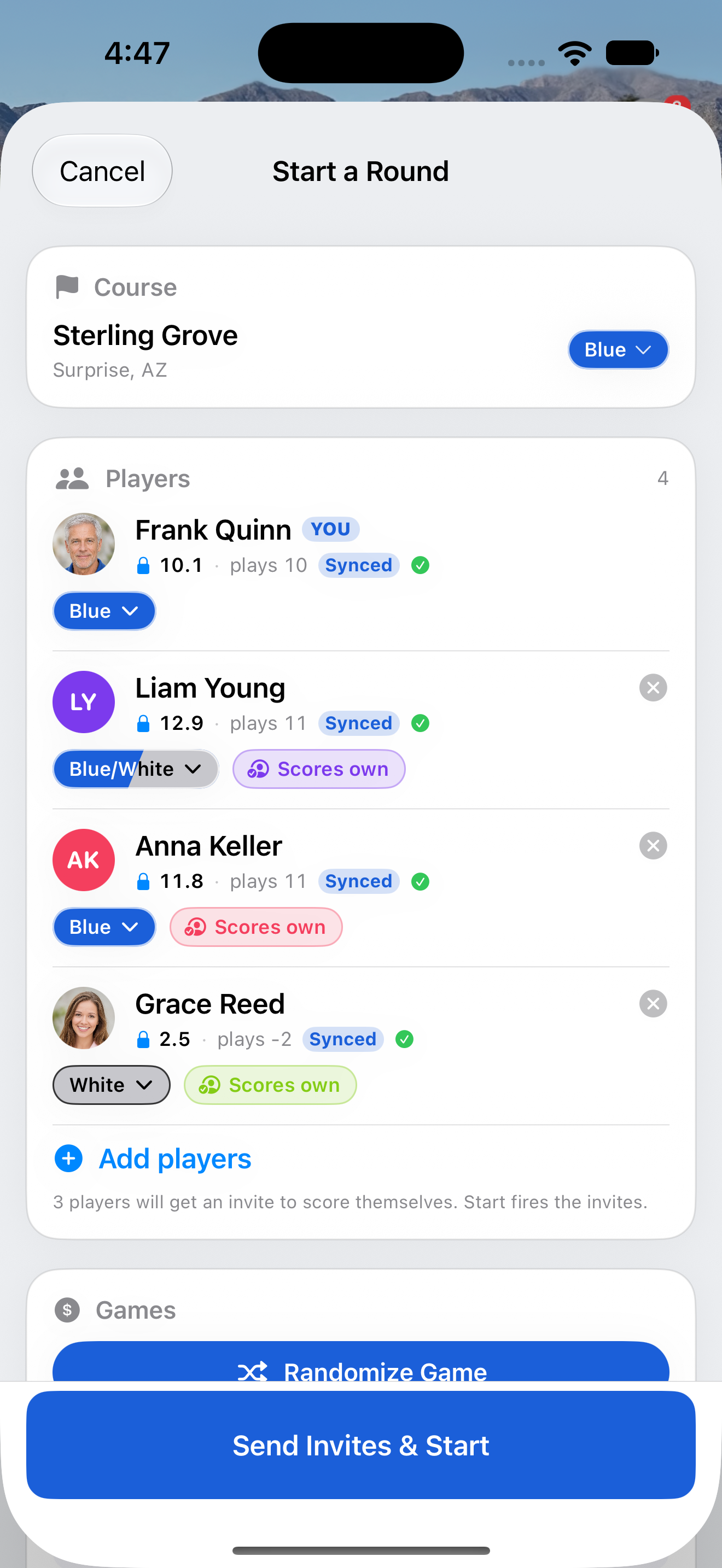
Start a Round — players, scoring & tees
Course & default tee
Your home course is picked for you. The tee here is the default — change it to set every player’s tee in one move. Individuals can still be overridden below.
That’s you
Your row. The lock means your Handicap Index® from the USGA stays current automatically. You can override it here.
Per-player tees
Each player starts on their own default tee — anyone without one starts on yours. Tap to override just that player, or change the course tee above to move everyone at once.
A local player
A player who doesn't use the app is a local player you add. You keep their score, shown as “Scored by You.”
Self-score
Only linked friends can score themselves. On = they get an invite to keep their own score on their phone. Off = someone else in the group scores them.
Scored by someone else
A linked friend can also be scored by someone else. Tap the “Scored by…” pill to change who keeps their score.
Send & start
Sends the self-score invites and starts the round for everyone at once.
7 · Start a Round → scroll to Games
Pick a Game
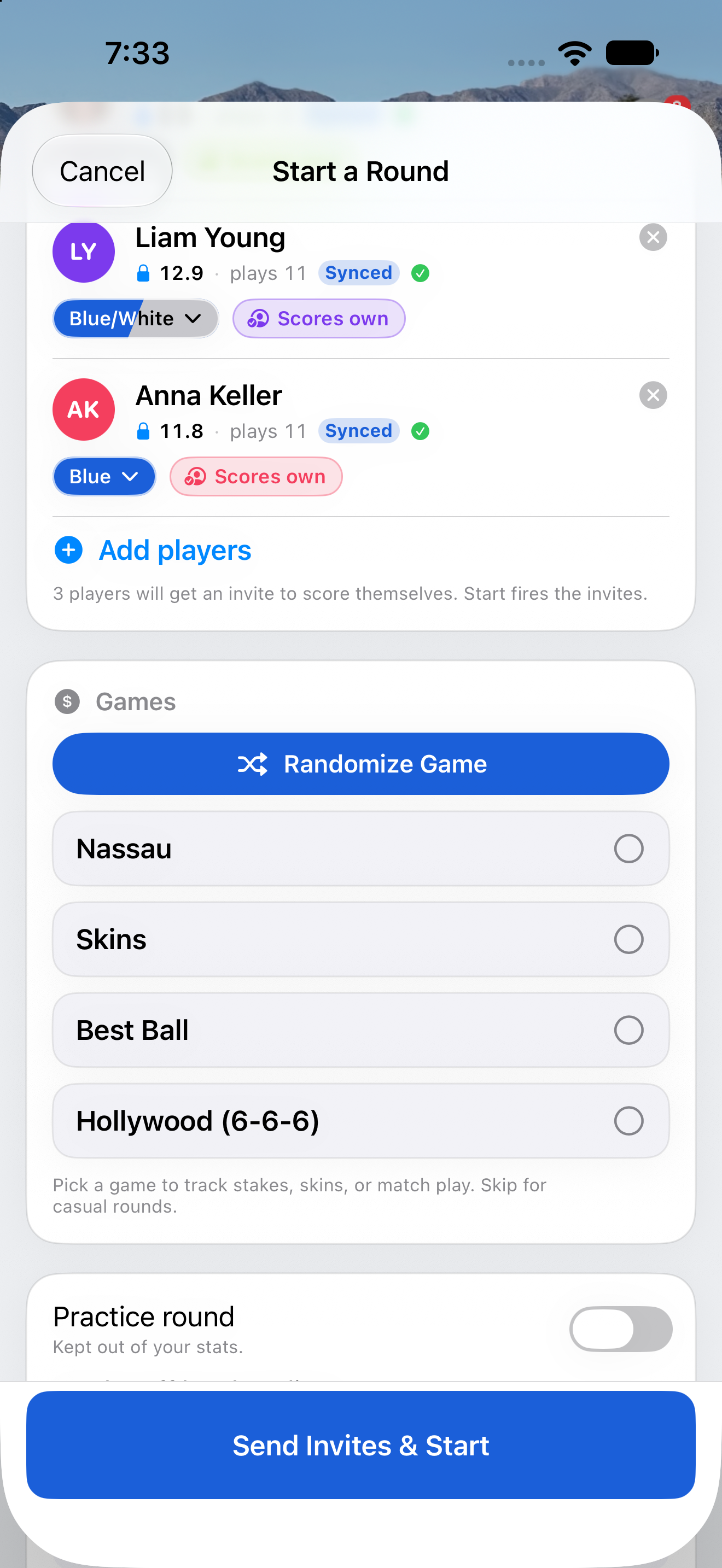
Start a Round — pick a game
8 · Pick a game → set the stake
Set the Stake
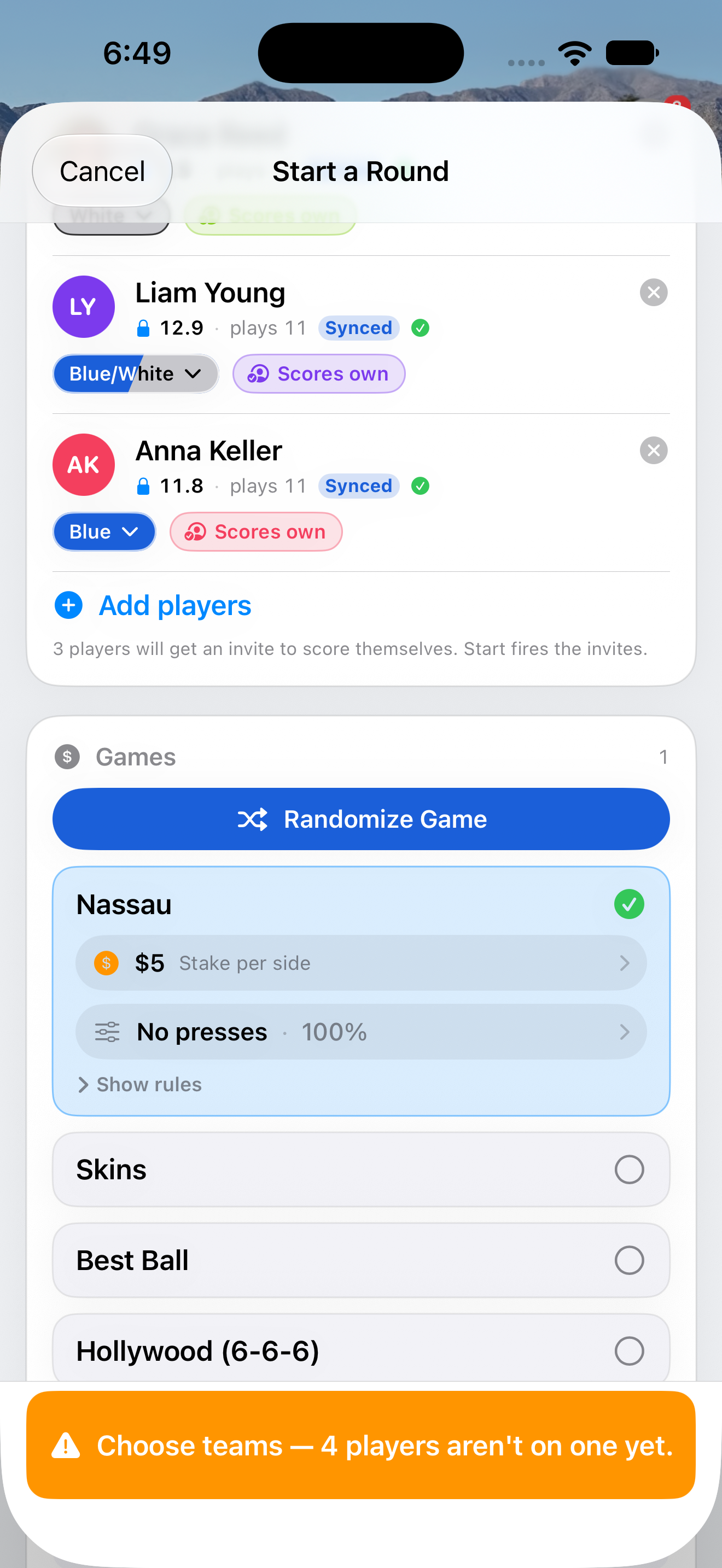
The match — set the stake
Set the stake
Tap the stake row to open the stake sheet — pick $1, $2, $5, $10 or $20, or type any amount. Match Caddie keeps score only; it never holds or moves money.
How it’s scored
Tap “Show rules” to see exactly how the game is scored and settled.
Team games need teams
A team game like Best Ball can’t start until teams are set — this banner is the reminder. You set them on the next screen.
9 · Pick a team game → Teams
Groups & Teams
Groups & teams for team games
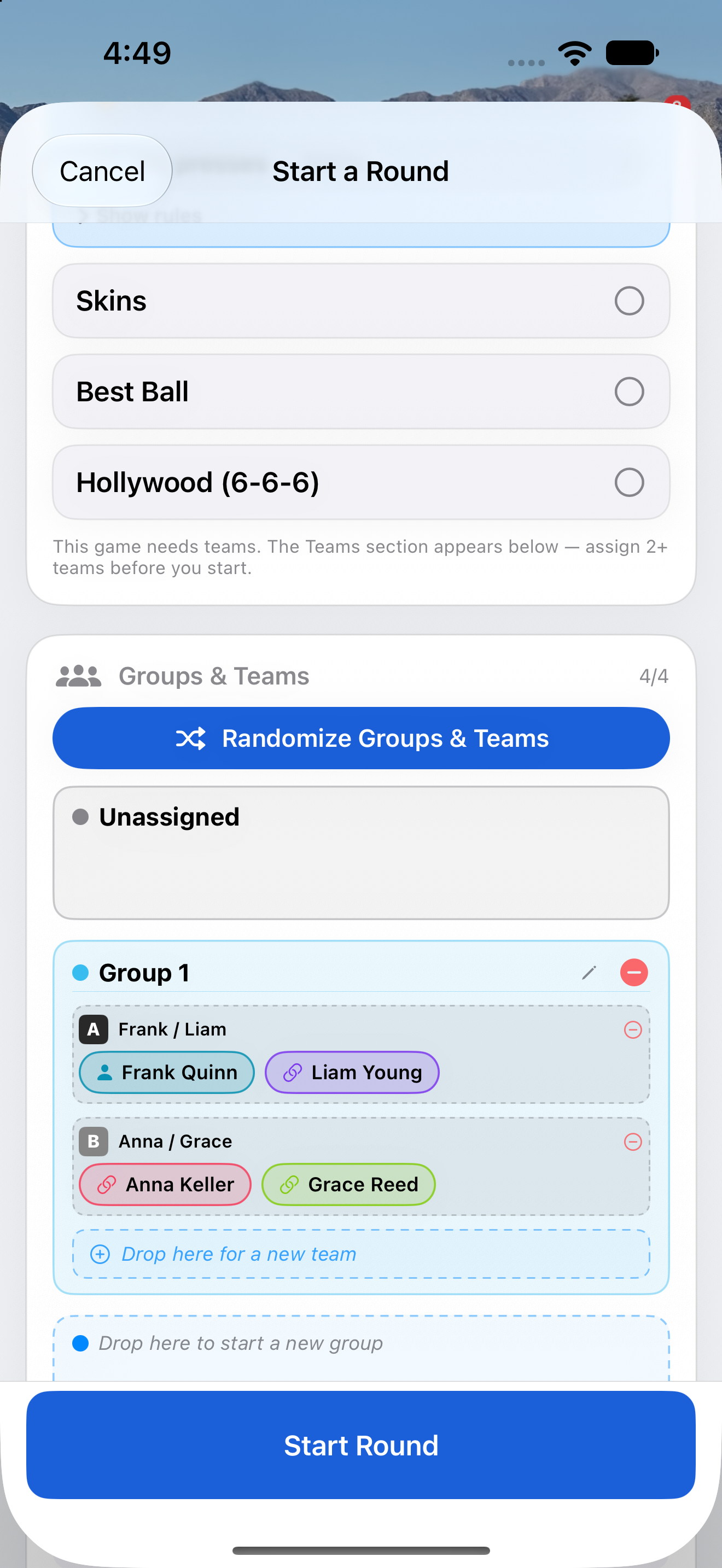
Auto or manual
Tap Randomize to auto-split everyone into groups and teams, or build them by hand below. Could be a fun way to pick teams.
Drag into teams
Drag each player into a group, then into a team (A or B) inside that group. Team games score team vs. team. The app supports multiple groups as well.
Match — a round with a game, shared live across phones.
Group — everyone in one tee time.
Team — a side (A/B) within a group, for team games.
10 · Start a Round → Options
Round Options
Round options — they appear once you pick a game
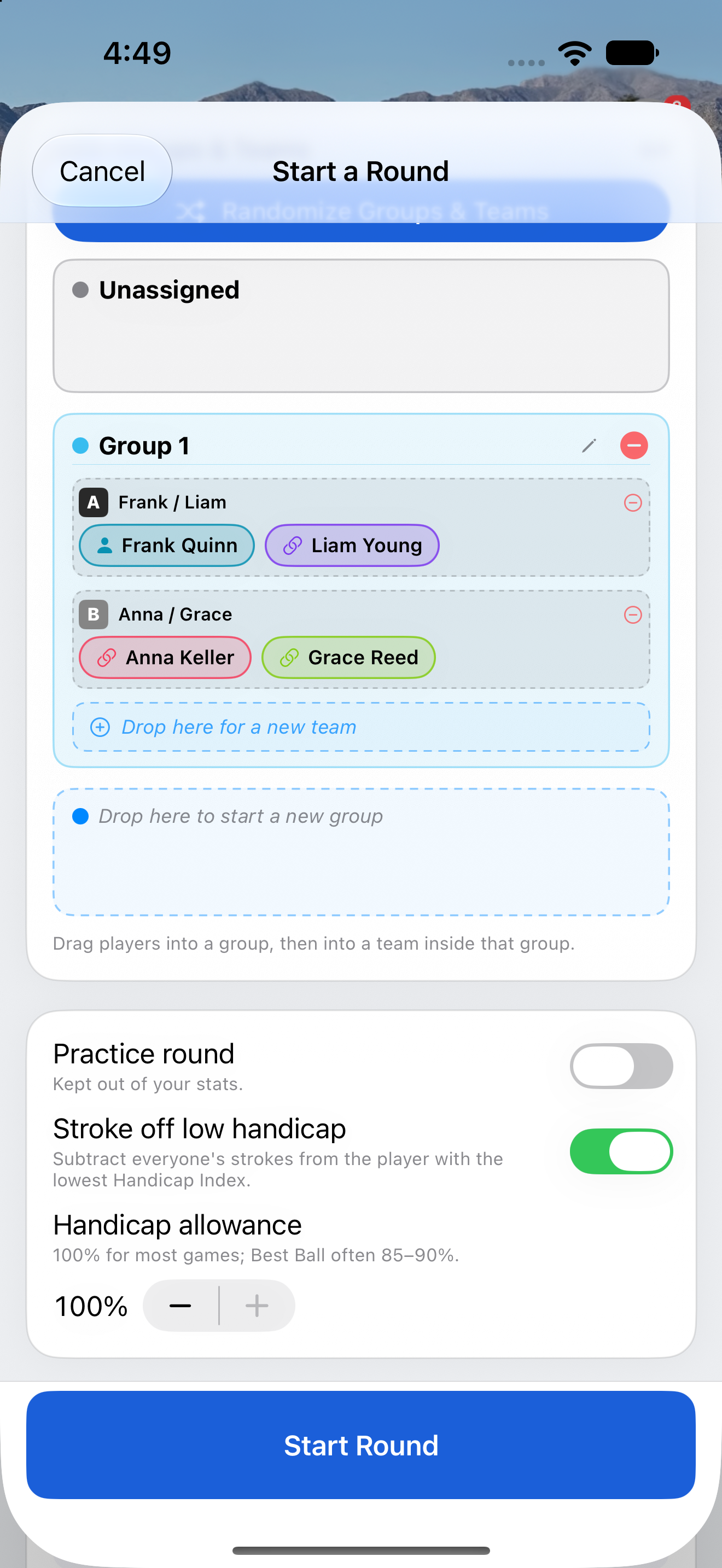
Practice round
Kept out of your stats — good for a range day or a casual loop. Stroke dots and games still work as usual.
Stroke off low handicap
Subtracts everyone’s strokes from the lowest-index player, so the best golfer plays off scratch. Turn off for everyone to get their full handicap.
Handicap allowance
Dial handicaps down from 100%. 100% for most games; Best Ball often 85–90%.
11 · Start a Round → Send Invites & Start
Match — Host
A match with a friend — your side
12 · Home → Respond to Match Invite
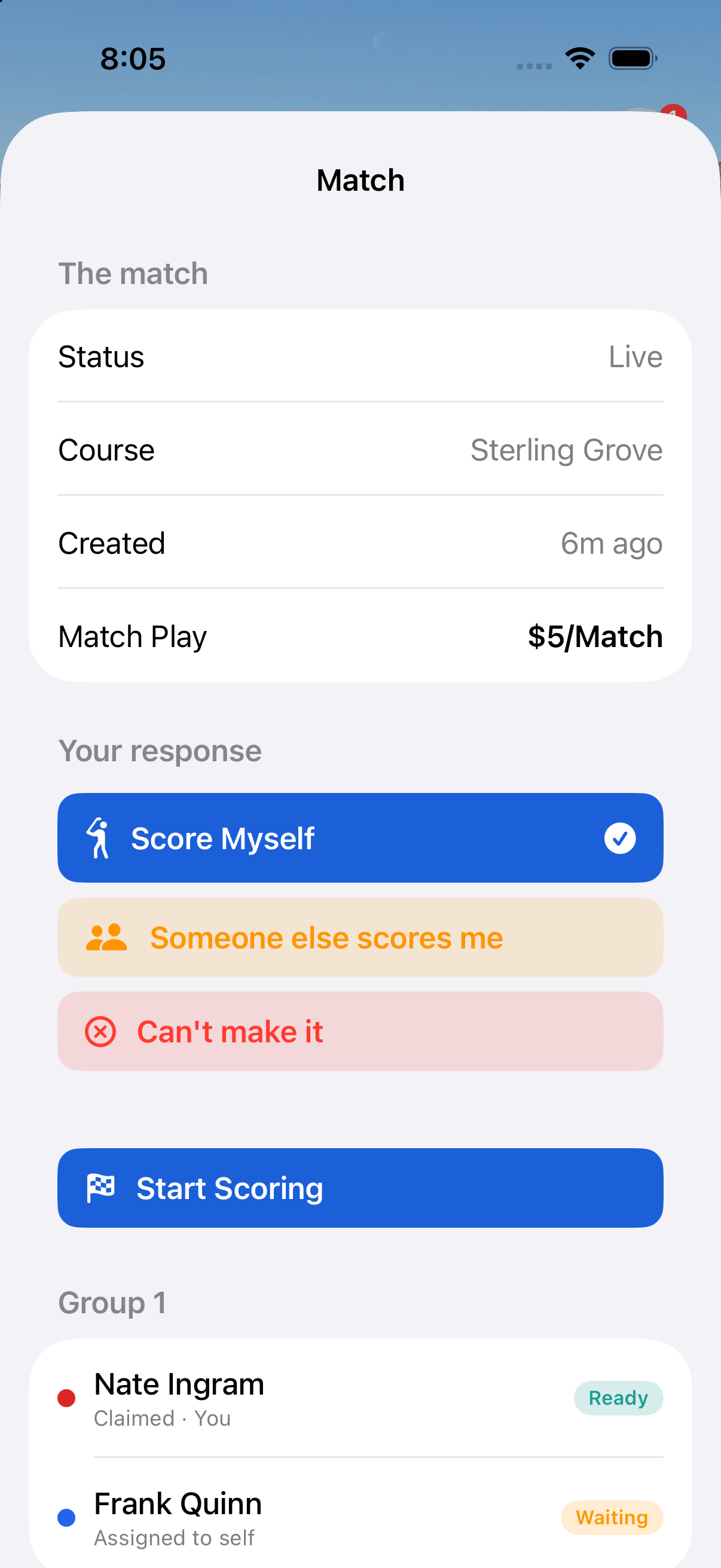
Match — Invitee
A match with a friend — their side
Start scoring
Once you have answered, tap Start Scoring to open the scorecard on your own phone.
Your response
How you take part: keep your own scorecard (Score Myself), let someone else in the group score you, or bow out. The match, course and stake are shown above.
Who scores whom
Who enters each player’s scores, and whether they are ready. Players who score themselves can track their own advanced stats — every score lands on the same shared match.
13 · In a round → Map
The Map
On the course — the scoring map
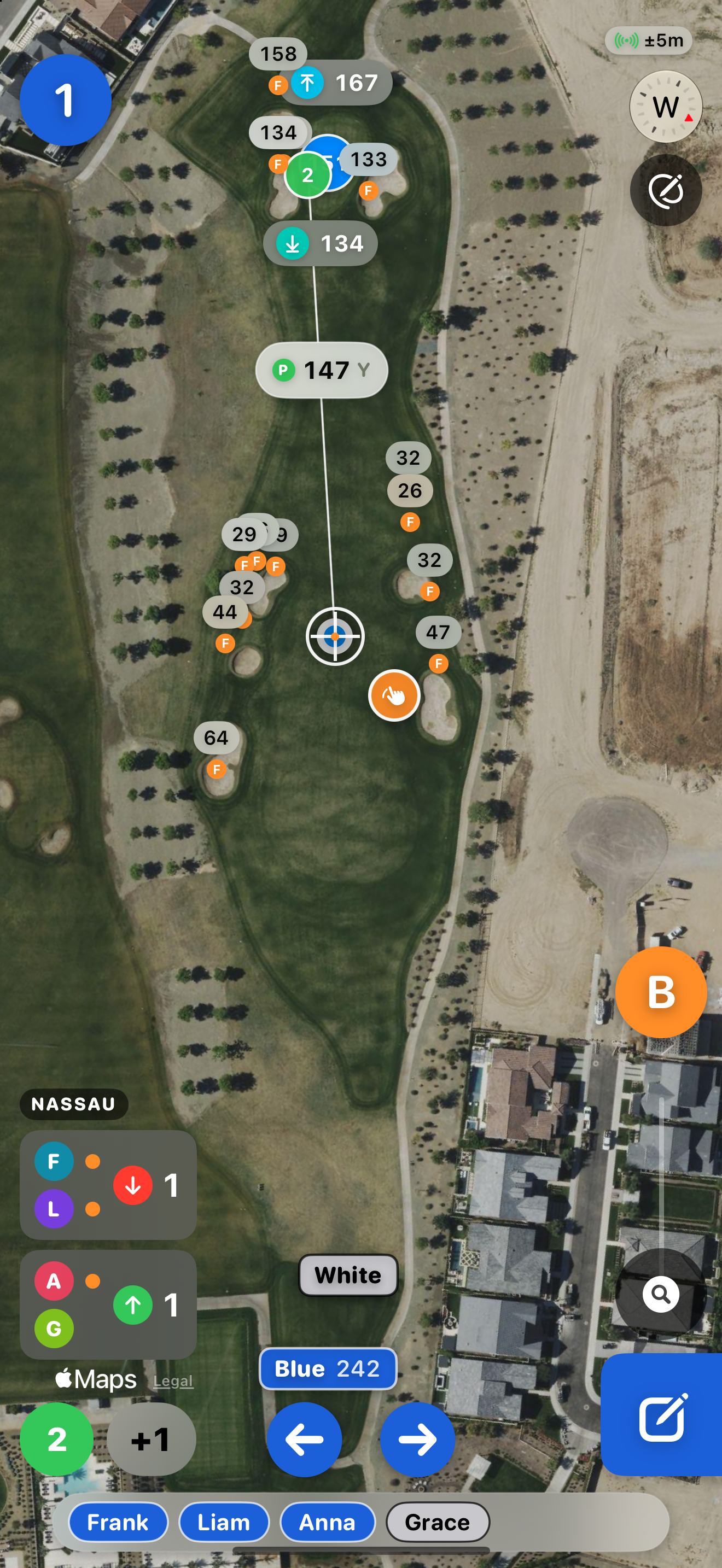
Current hole
Tap to change holes. On a shotgun start it opens on the hole you start from.
Yardages to the green
Live distances to the front, center and back of the green, and to today’s pin where the course has pin data.
Track Shot
Tap the yellow button after a shot and pick the club you hit. Mark the next shot too — that is how the app knows how far it went. First, turn on Track shots during play in Prefs → Scoring.
Map tools
B toggles bunker distances on and off. Cleans up the map until you need to know a bunker distance.
Measure anywhere
Press and hold the orange thumbprint by your marker, then drag the crosshair anywhere on the hole to measure. Drag out a second point if you need one. Tap to send it back, or it returns on its own as you move.
Zoom
Drag up to zoom to the green. Drag down to zoom back out.
Current Hole Dots
Who gets strokes on this hole — first initial, or as many letters as it takes to tell players apart.
Live game status
Your match standing updates as scores come in — each side shows whether it's up or down. Tap it to expand (next page).
Pin Location
Today’s pin position, where the course has pin data. It moves to the next position each day; tap to change it.
Score entry screen
Tap to open the score entry screen.
Distance from tee
Distance back to each tee box your group is playing, once the tees are off screen. Nice to know how far the bomb was.
14 · In a round → Map → tap the game box
The Map — Game Standings
On the course — how your game stands, hole by hole
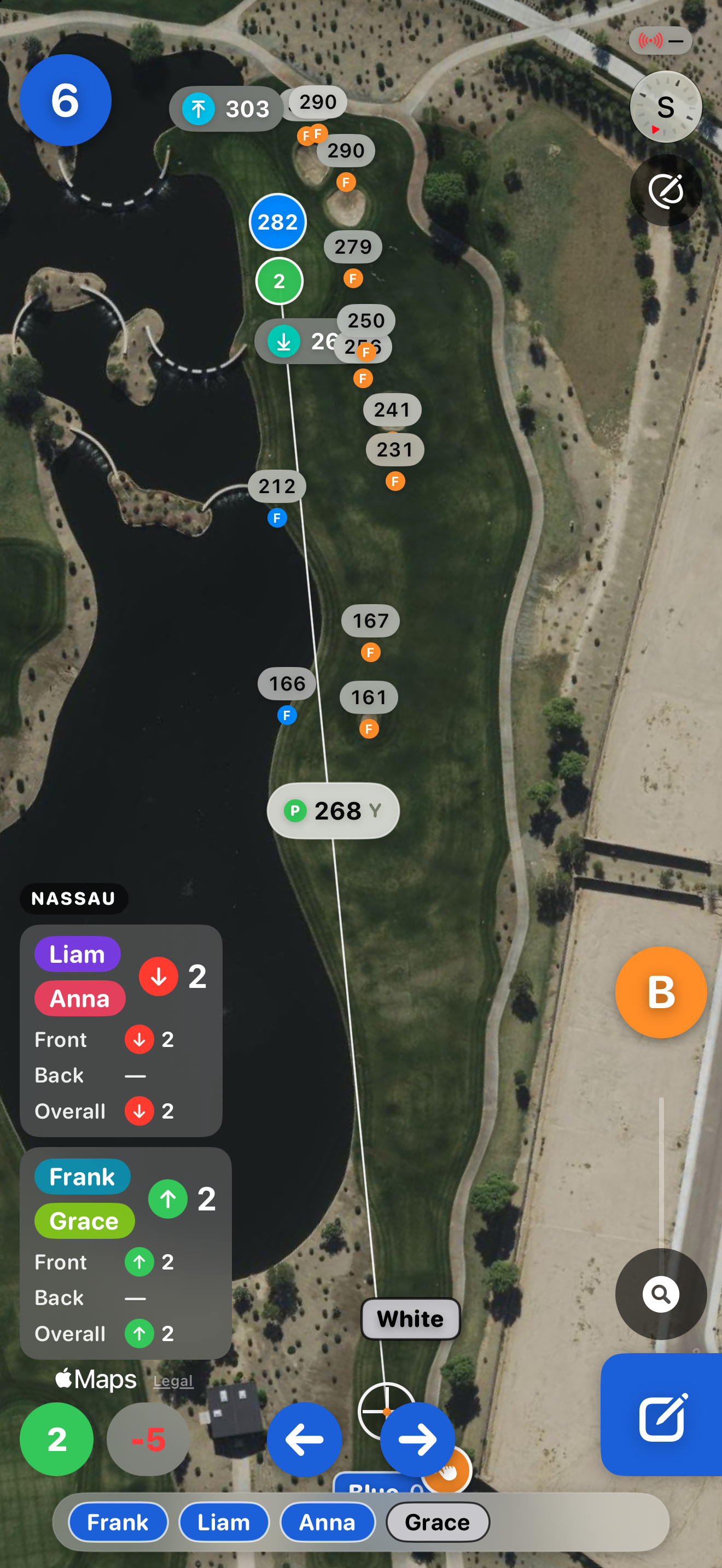
Tap to open it up
The game box in the lower left shows who is up. Tap it to expand the full standing; tap again to fold it away.
Front, Back, Overall
A Nassau is three matches in one. Each line shows who leads that match and by how many holes — the Back fills in once you make the turn.
Both sides at a glance
Every team gets its own panel, so you can see where everyone stands without leaving the map. Up arrows lead; down arrows trail.
15 · In a round → Map
The Map — Targets & Distances
On the course — the map in detail
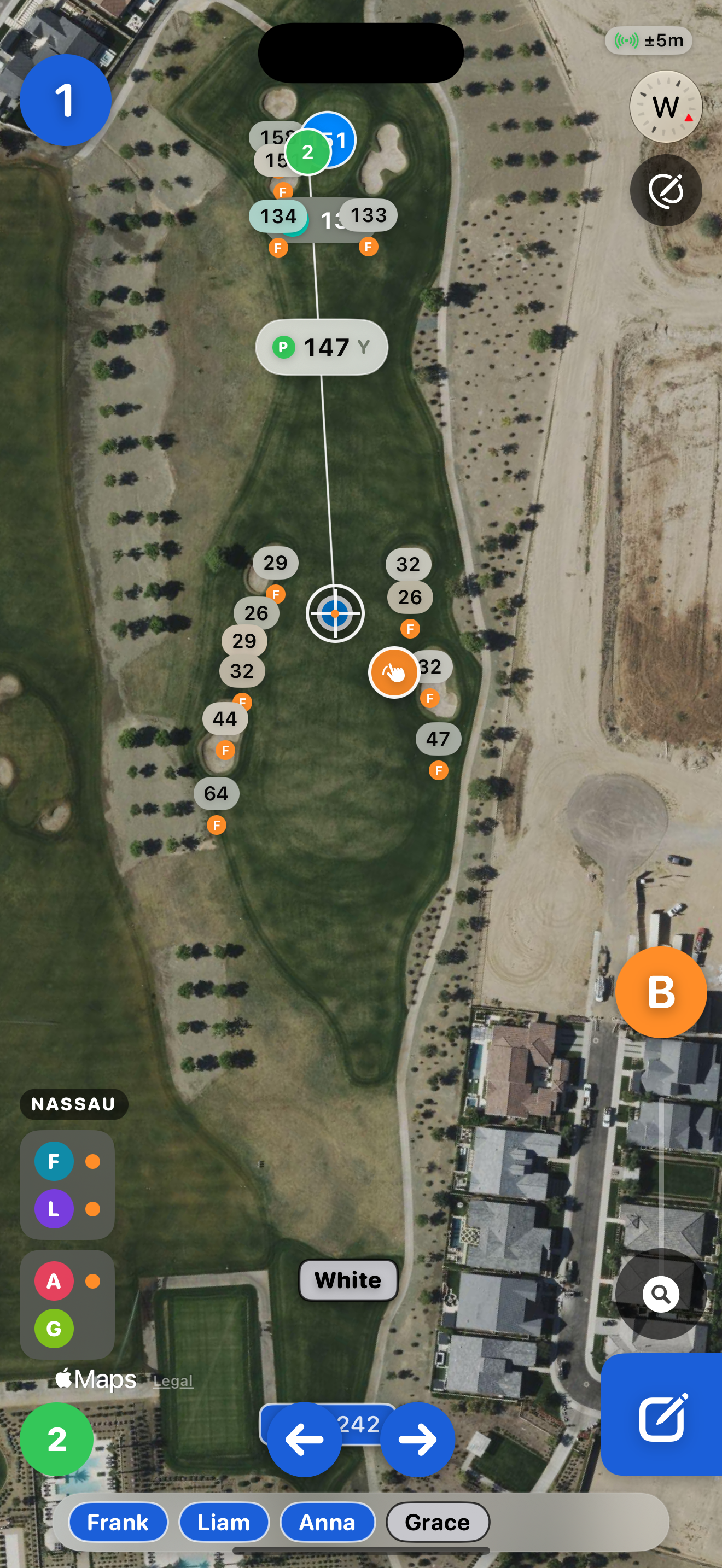
GPS accuracy
How sharp the GPS is right now (±5 m here). On the course it is usually 2–3 meters.
Carry distances
Numbers to bunkers, hazards, and the front/center/back of the green so you can pick a target.
Pin Location
Today's pin. Distances can measure to the pin or to the center of the green — your choice in Preferences.
Navigation
Move between holes
16 · Courses → pick a course → Yardage Book
Yardage Book
Your Yardage Book — your own notes on any hole
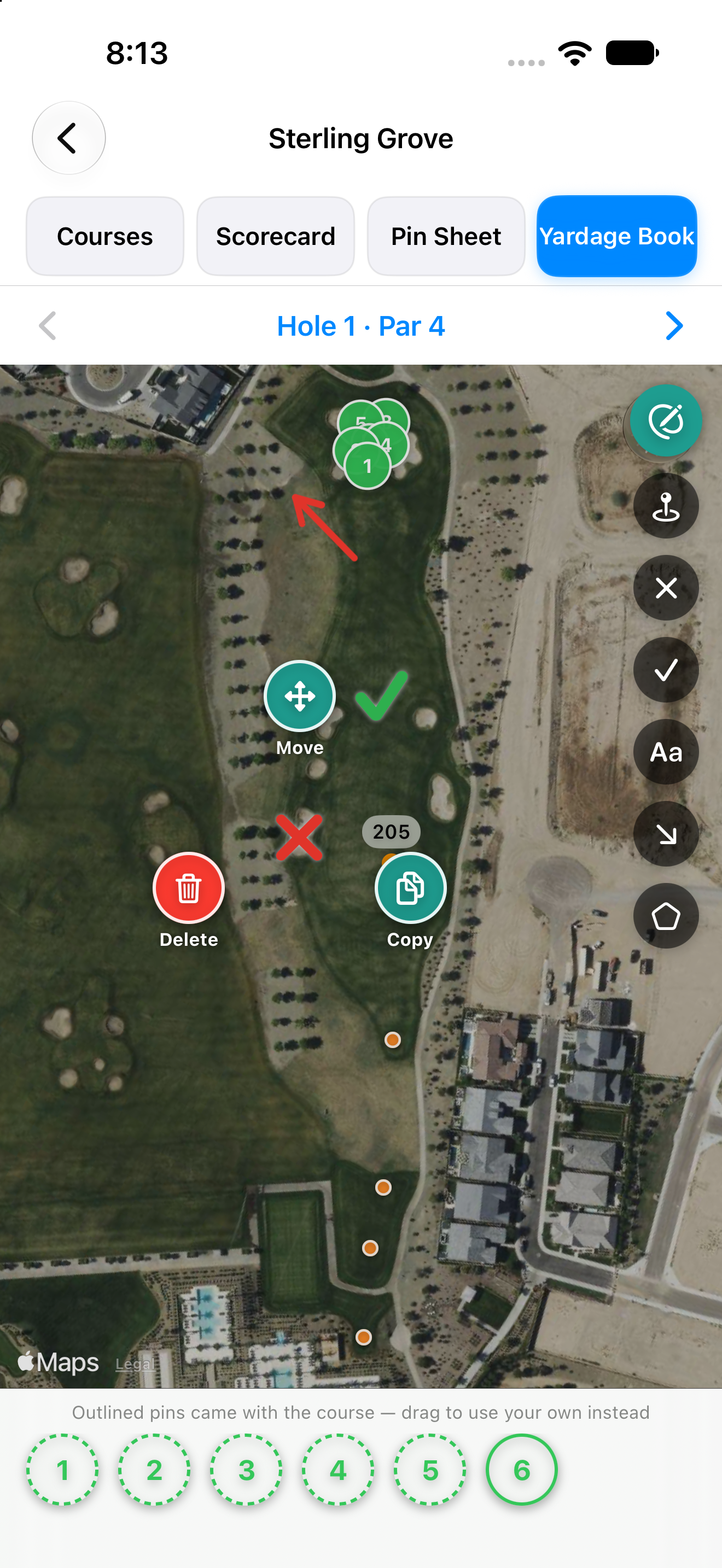
Yardage Book
Mark up any hole with your own notes — the slope you keep misreading, the bunker you can’t carry, where the pin actually was. It’s private to you, and it works with no signal.
The tools
Pick a tool, drag the crosshair where you want it, then tap the chip beside it to drop. X, check, note, arrow and area — plus the eye to hide everything for a clean map.
Slope arrows
Drag the crosshair to aim, and the arrow stretches to show direction and how far the slope runs. Good for greens that break more than they look.
Pin positions
Numbered pins for the day. Pick one number at the start of a round and it means the same thing on all eighteen greens, exactly like a printed pin sheet.
Tap a mark to change it
Tap any mark to get Move, Copy and Delete. Copy is handy when the same note applies to two spots.
Areas
Trace a shape point by point — a false front, a collection area, the part of the fairway you can’t see from the tee. Drag any point later to reshape it.
Drag your own pins
Drag a puck from the strip onto the green. Outlined pucks came with the course; solid ones are yours, and yours win. Tap a solid one to remove it and the course’s comes back.
17 · In a round → Map → pencil
Yardage Book — On the Course
Your Yardage Book — on the scoring map
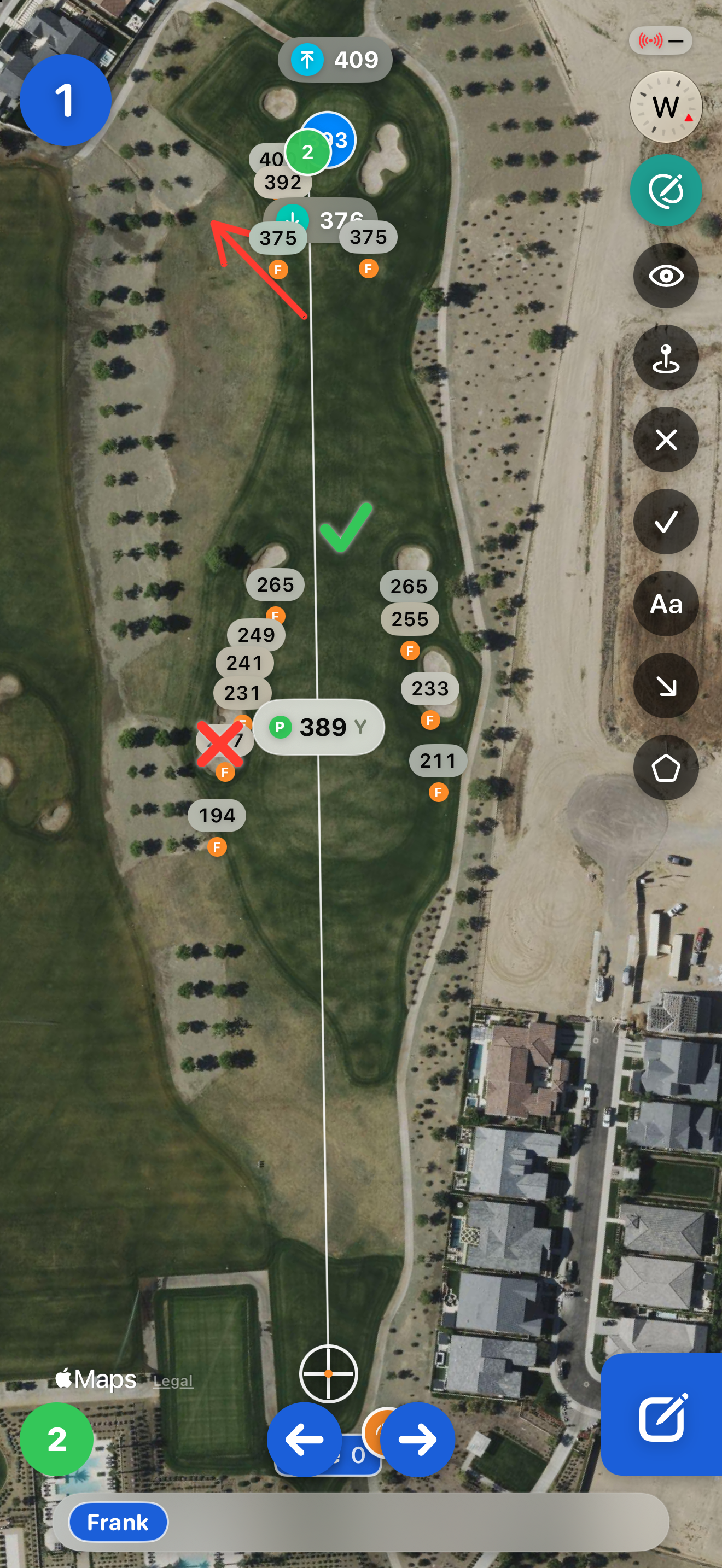
Change them as you play
Tap the pencil on the scoring map to bring up the same tools. Notice the slope is worse than you thought? Fix it now and it is saved for next time — no signal needed.
Hide them for a clean look
The eye hides your whole layer — marks, targets and all — when you just want to see the hole. Tap it again to bring everything back.
Your notes, where you need them
Everything you drew in the Yardage Book shows up on the scoring map, in place and to scale, while you play.
Turn it off entirely
Play Preferences has a Yardage Book switch. Turn it off and your marks stop appearing on the scoring map — nothing you drew is lost.
18 · Yardage Book or scoring map → point tool
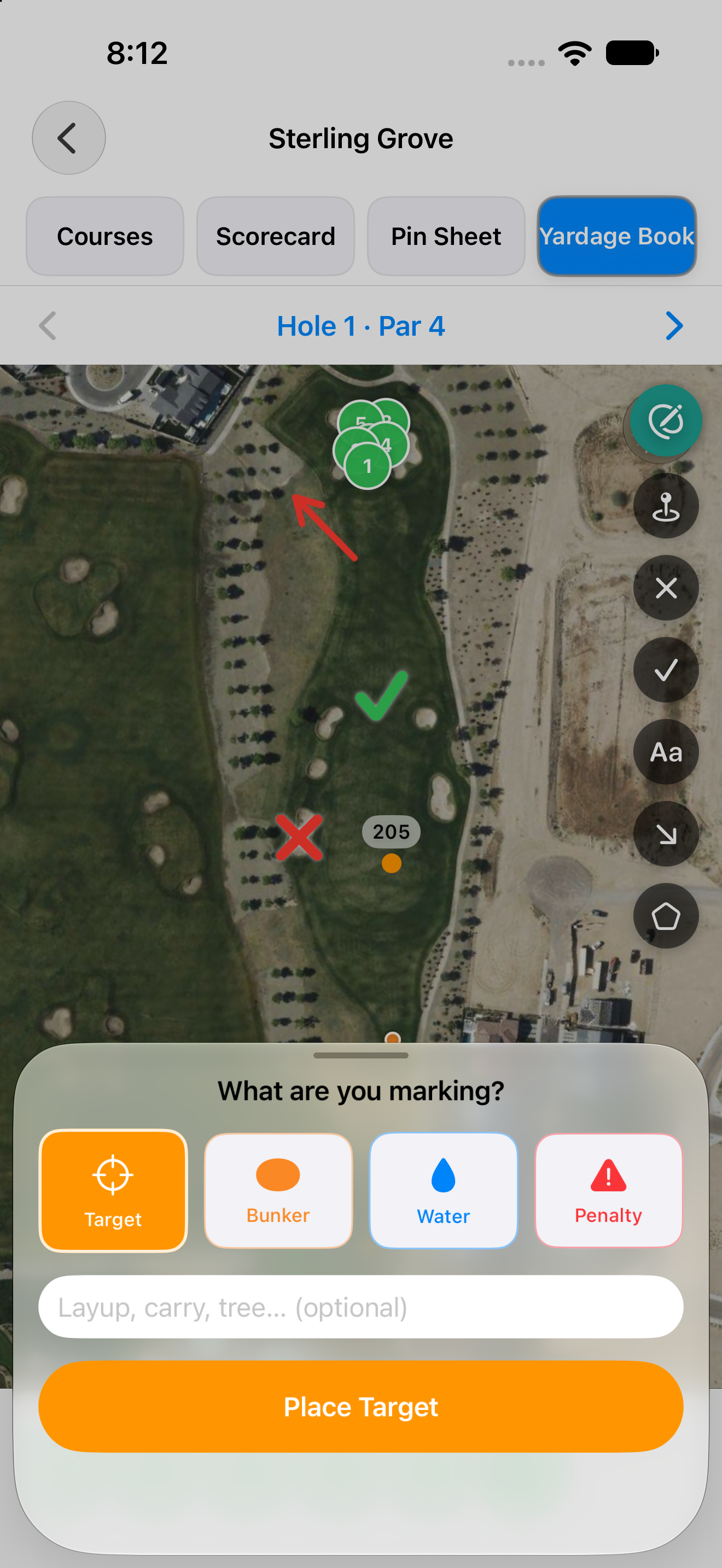
Yardage Book — Points
Mark targets, bunkers, water or penalty areas — with or without a label
19 · In a round → score entry
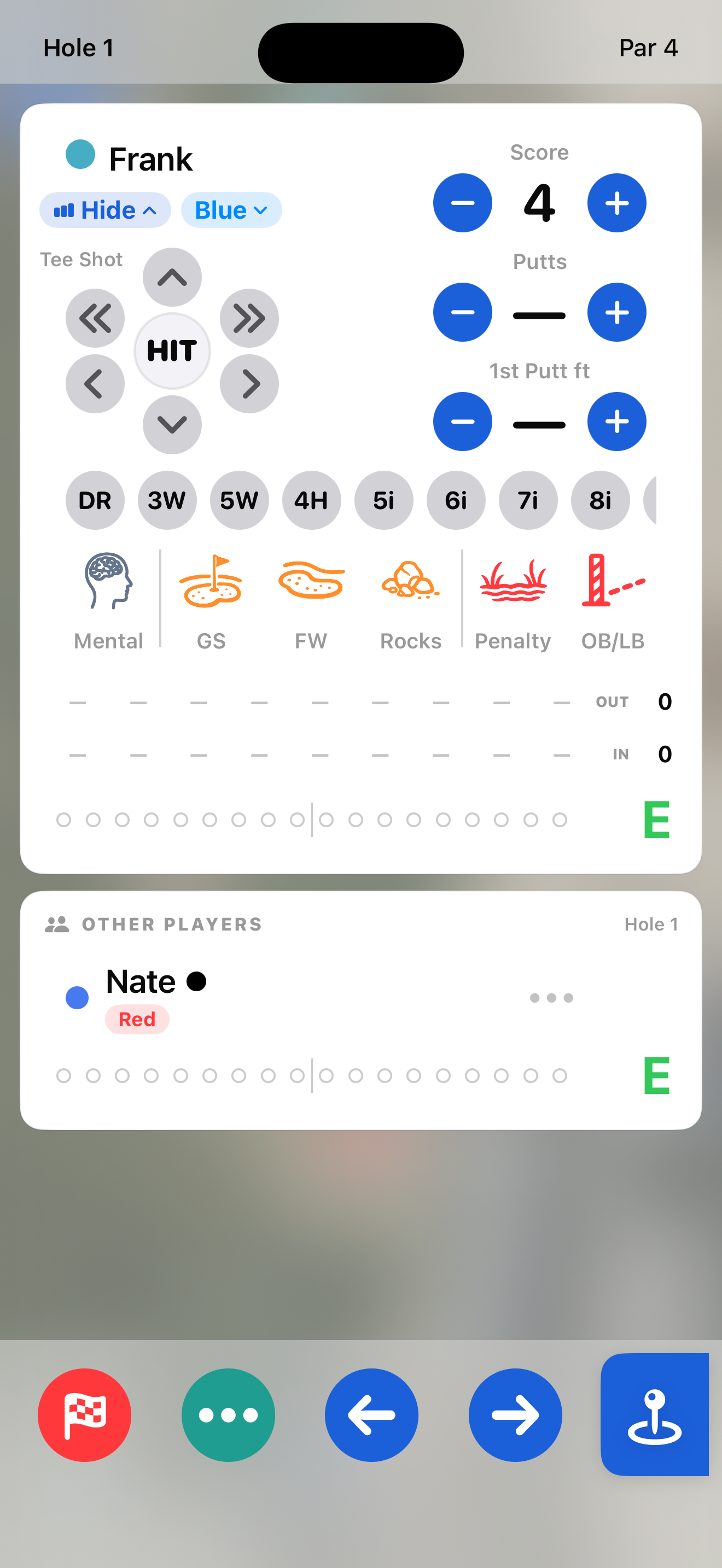
Scoring Your Card
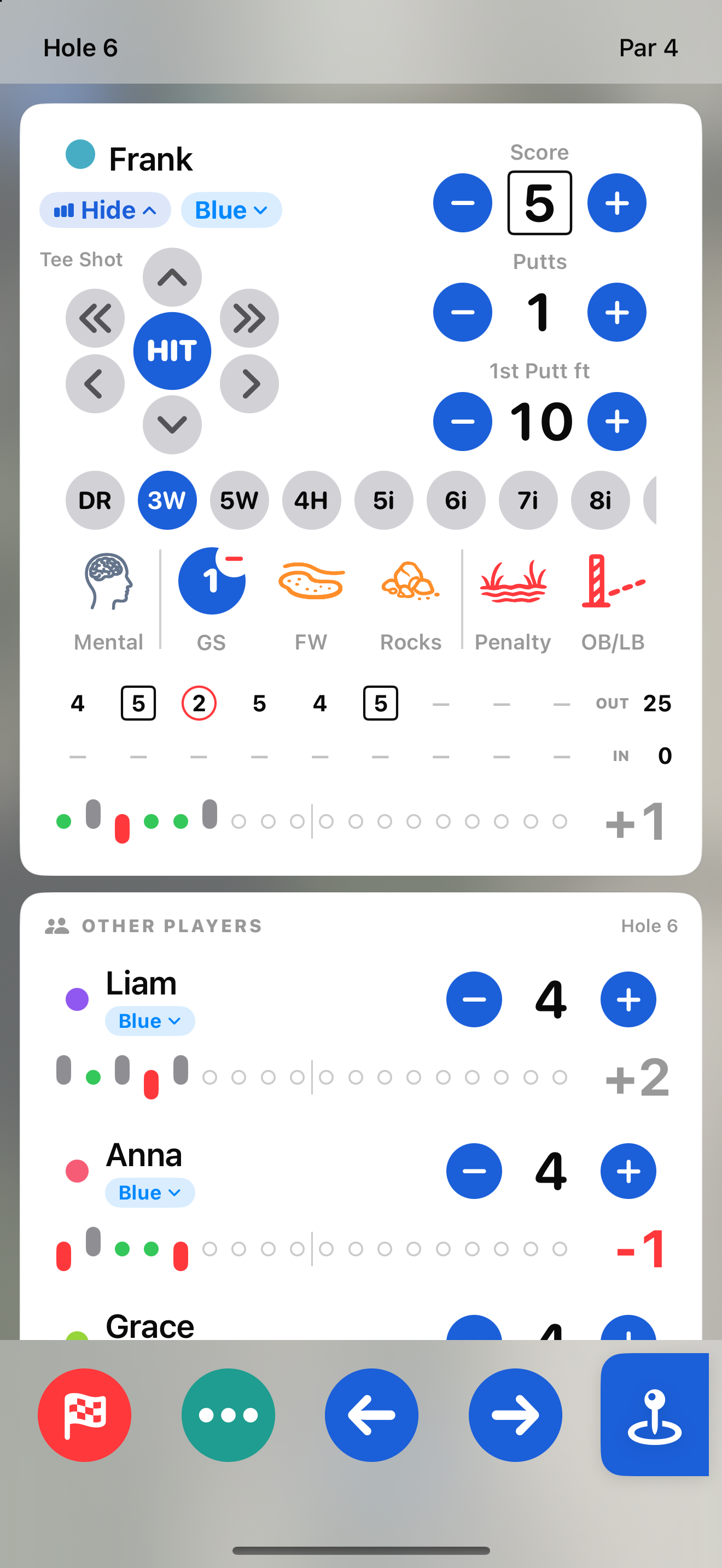
On the course — scoring your card
Tee box
Change your tee right here. On blended tees it also shows which tee to play from on each hole.
Score
Set strokes for the hole with − / +.
Putts & first putt Distance
Track total putts and your first-putt distance. Tap on the distance number to type in as an option.
Tee-shot direction
Log where your tee shot went — the pad records direction; HIT marks the fairway.
Tee Club
Tap the club you hit off the tee; swipe for the rest of your bag. Set up your clubs on your Me page.
Penalties
Log water, lost ball, or out-of-bounds. These are stroke adding events.
Trouble
Log trouble you found on the hole. Tap again to add another; tap the badge to remove one. These don’t add strokes.
Running scorecard
Your hole-by-hole scores with OUT and IN totals. Can be turned off in settings.
Progress to par
Each hole as a dot — stretched up for over par, down for under — so the shape of your round shows at a glance.
Player color
Each player’s color, set on their player card. It is used on their scorecard too.
20 · Scoring → scroll down
The Group
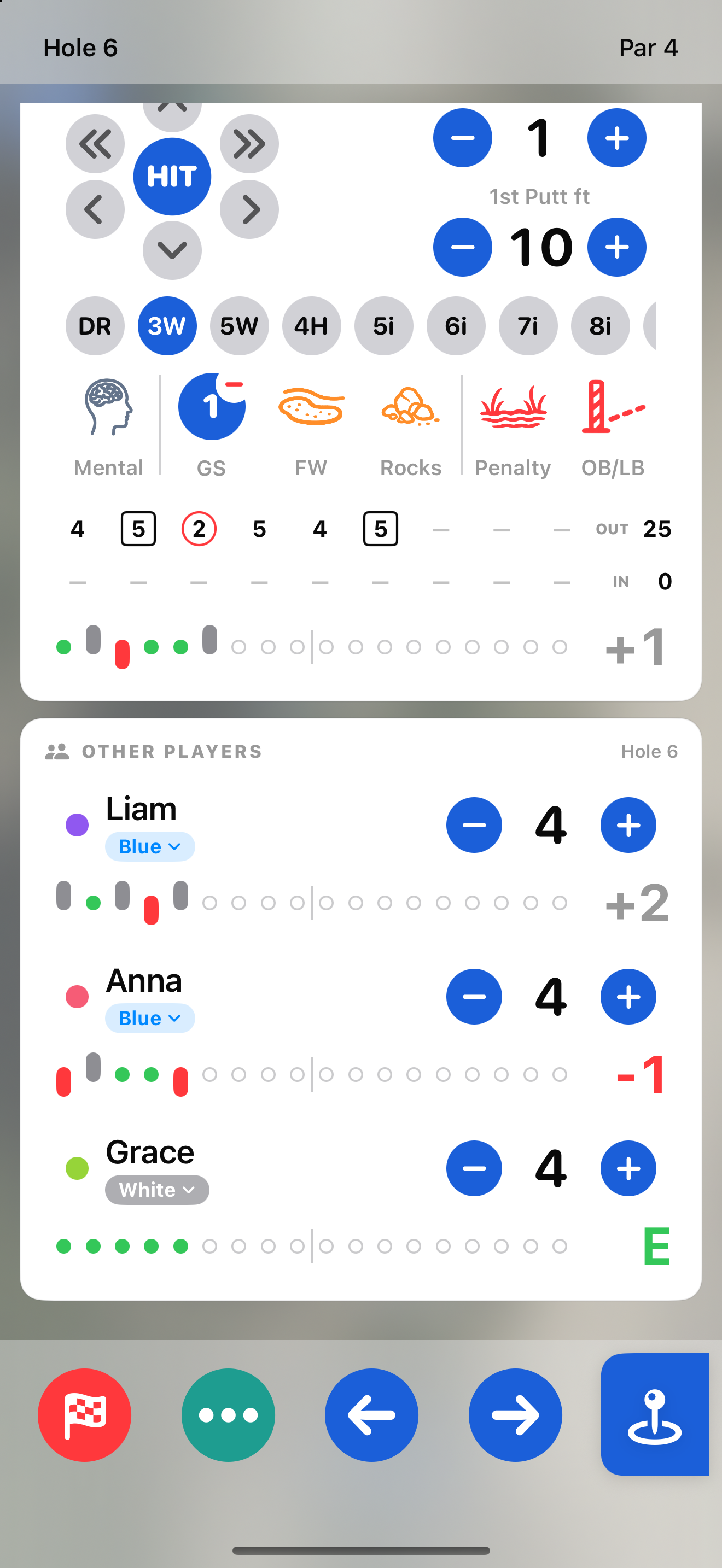
On the course — scoring the group
Other players
Everyone else in the group. Scroll to score them or check on them.
Their score
Set each player’s strokes with − / +.
Player Tees
Each player's tee. Tap to change it.
Their progress bar
Each player's holes to par at a glance, with their running total.
Pause or round setup
Pause the round, or reopen round setup to change players, tees or games.
Move between holes
Step forward and back through the holes.
Finish & tools
Flag to finish or delete the round.
Map View
Jump back to the map.
21 · In a round → Scorecard
The Scorecard
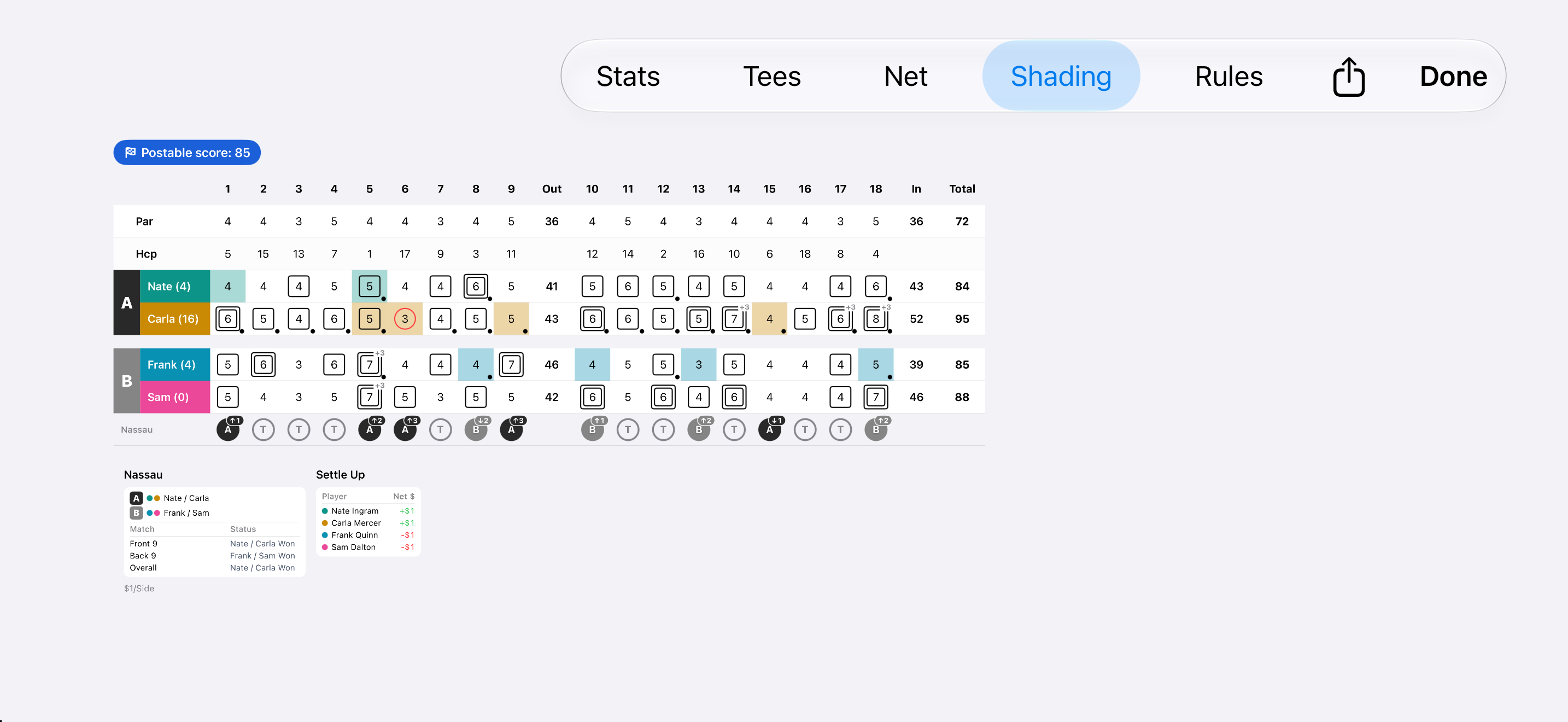
The match scorecard — teams, results & settle-up
Share
Share a live link to the scorecard (it stays live for 30 days), or send an image of the card as it is now.
Ways to read it
Switch views: Stats for advanced stats if recording, Net to show net scores, Tees to list each players tees under their names, Shading toggles cell shading for winning holes by player, and the game Rules.
Teams
Players split into teams — A and B, color-coded — for team games like Best Ball.
Settle Up
The bottom line — net dollars won or lost per player once the match is settled. Match Caddie does the math; how you settle is between you and your playing partners.
Current Score
Wins and Losses per team or player.
Rotate phone while in map view or on score entry screen
22 · Home → Ask your data
Ask Your Data
Ask your data — questions about your golf in plain English
History & New
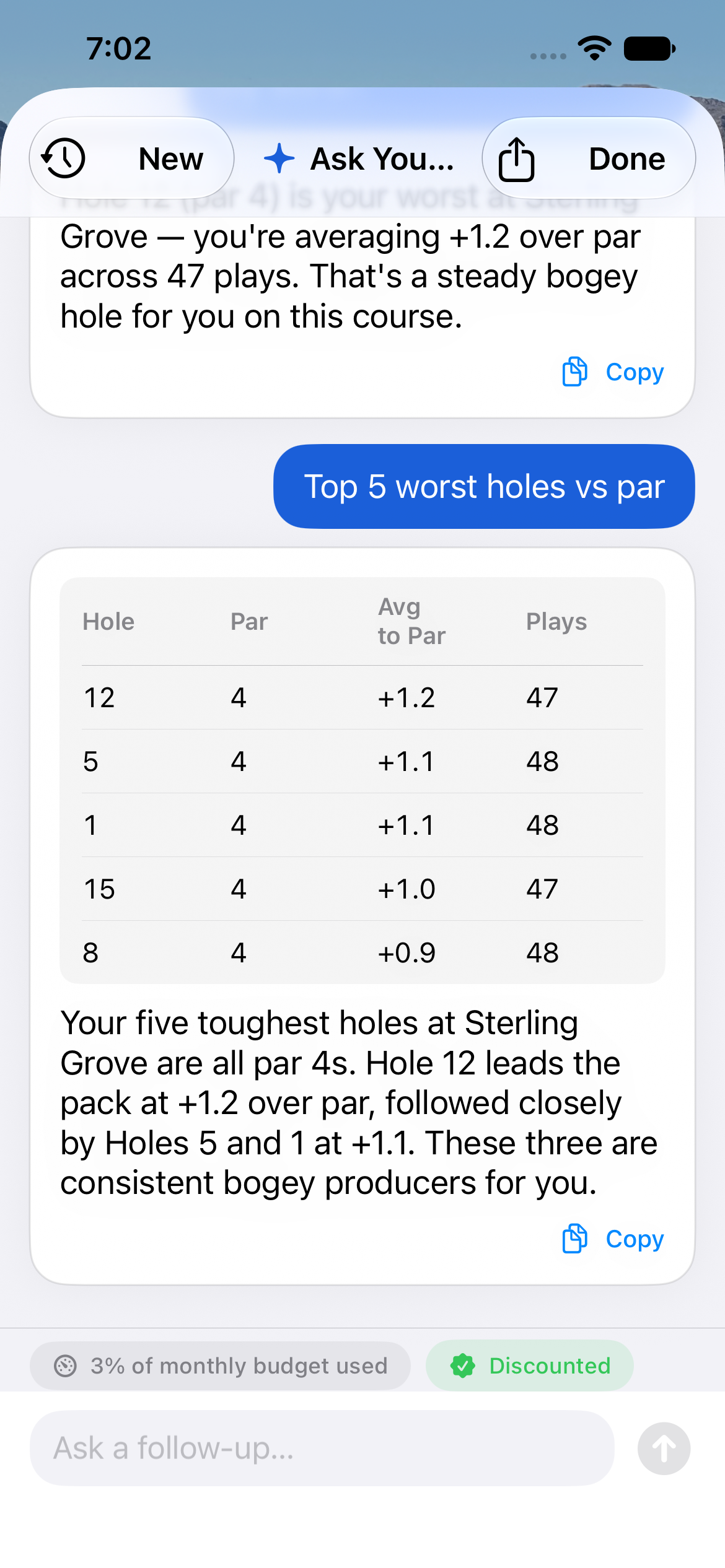
The clock shows past questions; New starts a fresh one.
Your answer
Answers come from your own scoring data. Follow-up questions cost less than the first one, so dig in. Questions about your rounds work best.
Copy
Copy the answer to share or save.
Usage meter
A monthly budget keeps costs in check; each question uses a little of it.
Follow-up
Ask a follow-up to dig deeper without starting over. Save tokens by continuing the conversation vs starting a new one.
Ask anything
Type a question in plain English — “What are my worst holes vs par?” — and get an answer from your own rounds.
23 · Home → My Rounds → Per Hole
Analytics — Per Hole
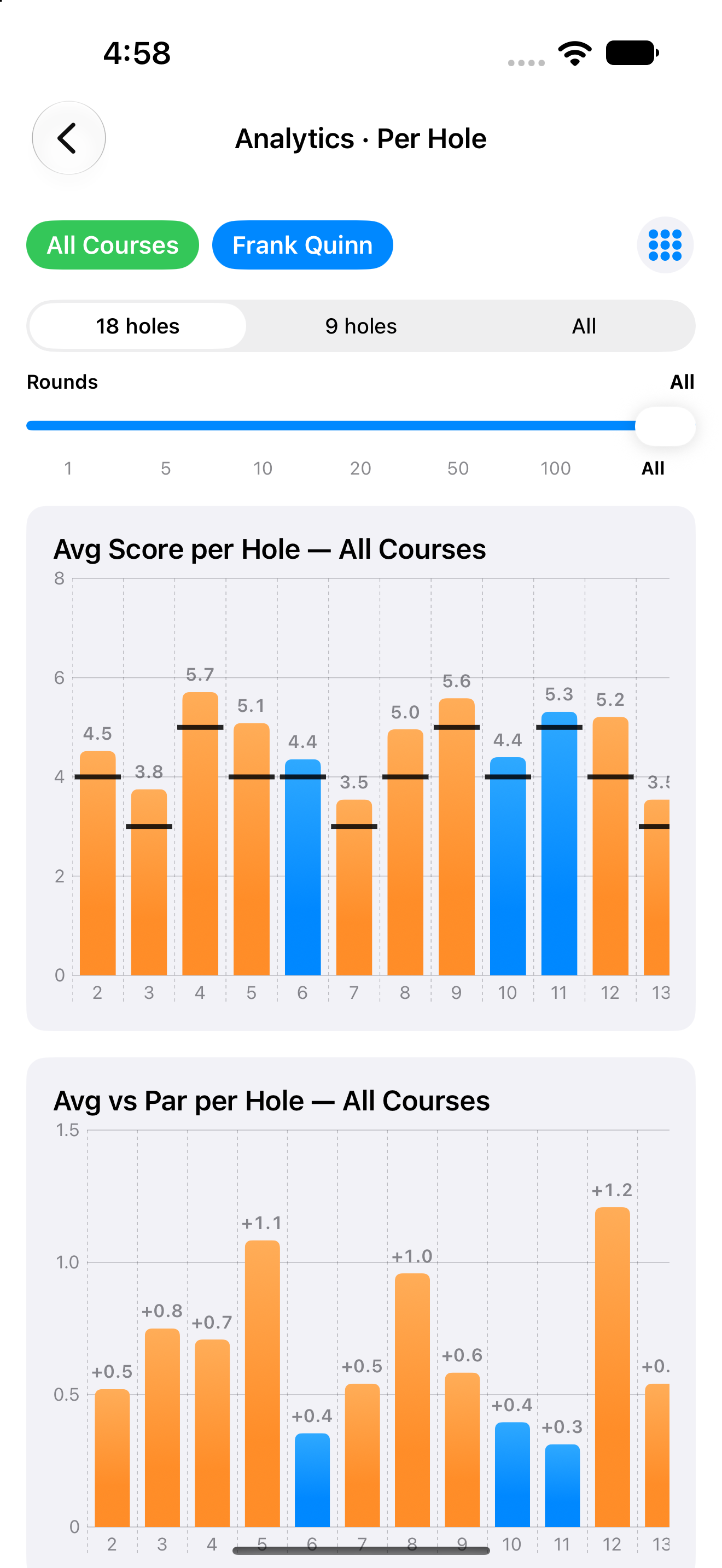
Analytics — your game hole by hole
Filter by course & player
Narrow to all courses or one course, and to yourself or a friend.
More Data Views
The grid button switches between analytics views — driving, putting and more.
How many rounds filter
Choose how many recent rounds feed the graphs.
Avg score per hole
Your average score on each hole, with par as the reference line. This is an example of one of the data graphs. Some graphs are interactive so try touching them.
Avg vs par per hole
Strokes over or under par you average on each hole — spot your trouble holes.
24 · Friends → tap a friend
Play Preferences
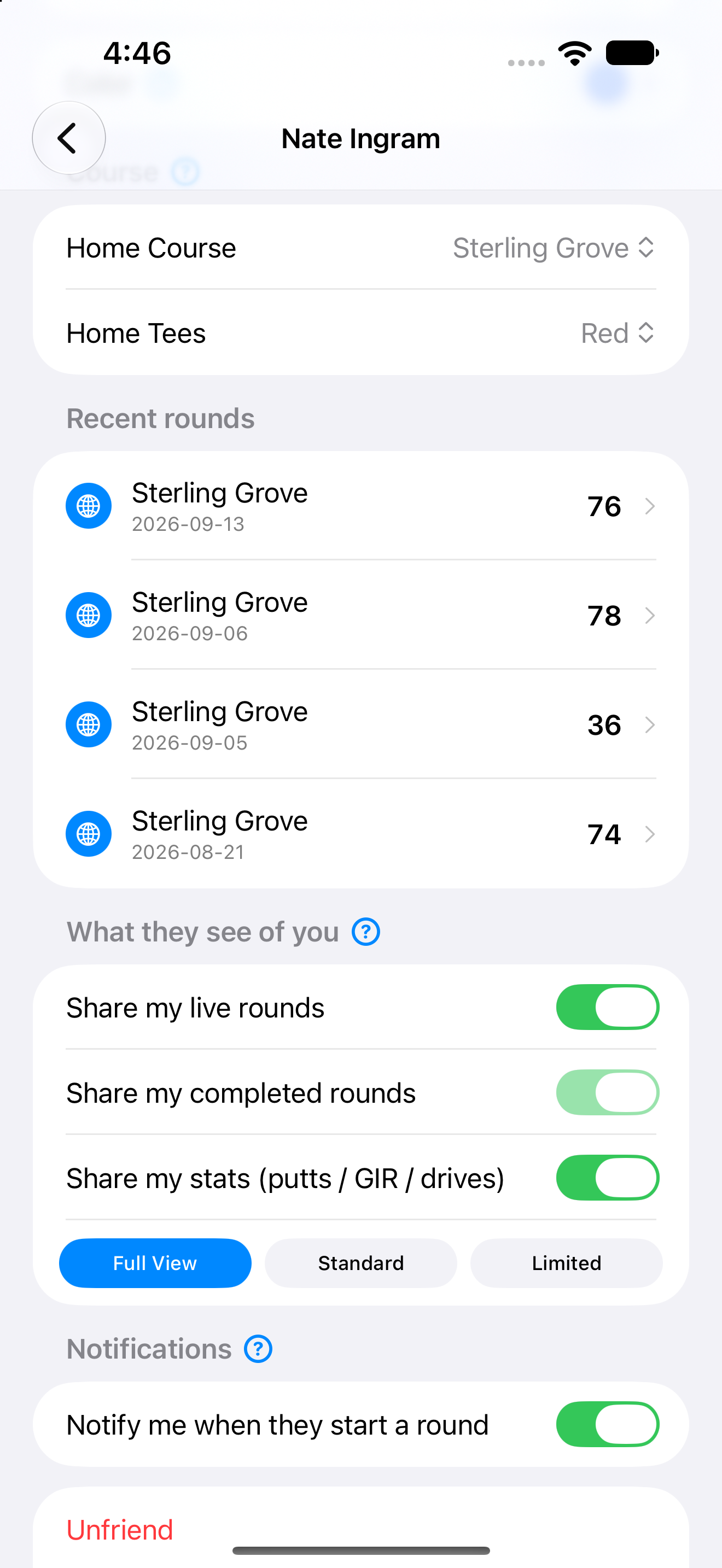
Play Preferences — what a friend sees of you
What you share
Choose what this friend sees of your golf — live rounds, completed rounds, and your stats (putts / GIR / drives).
Quick presets
Full View, Standard, or Limited flip all three shares at once.
Round-start alerts
Get a push when this friend starts a round — turn it off to mute them.
Manage the friendship
Unfriend, block, or remove this friend.
Something here doesn't match what you see in the app? Let us know. Back to top